
macOS 13 or later
Pakon scanner software for Mac
A real Mac app for the Kodak Pakon F-135 and F-135+. Works on Apple silicon and Intel Macs. Free.
No more TLX in a Windows XP virtual machine
Until now, scanning with a Pakon on a Mac meant running TLXClientDemo inside a Windows XP virtual machine: buying or finding XP, setting up the virtual machine, getting the USB connection to pass through, and hoping it held for a whole roll. On Apple silicon Macs it barely works at all.
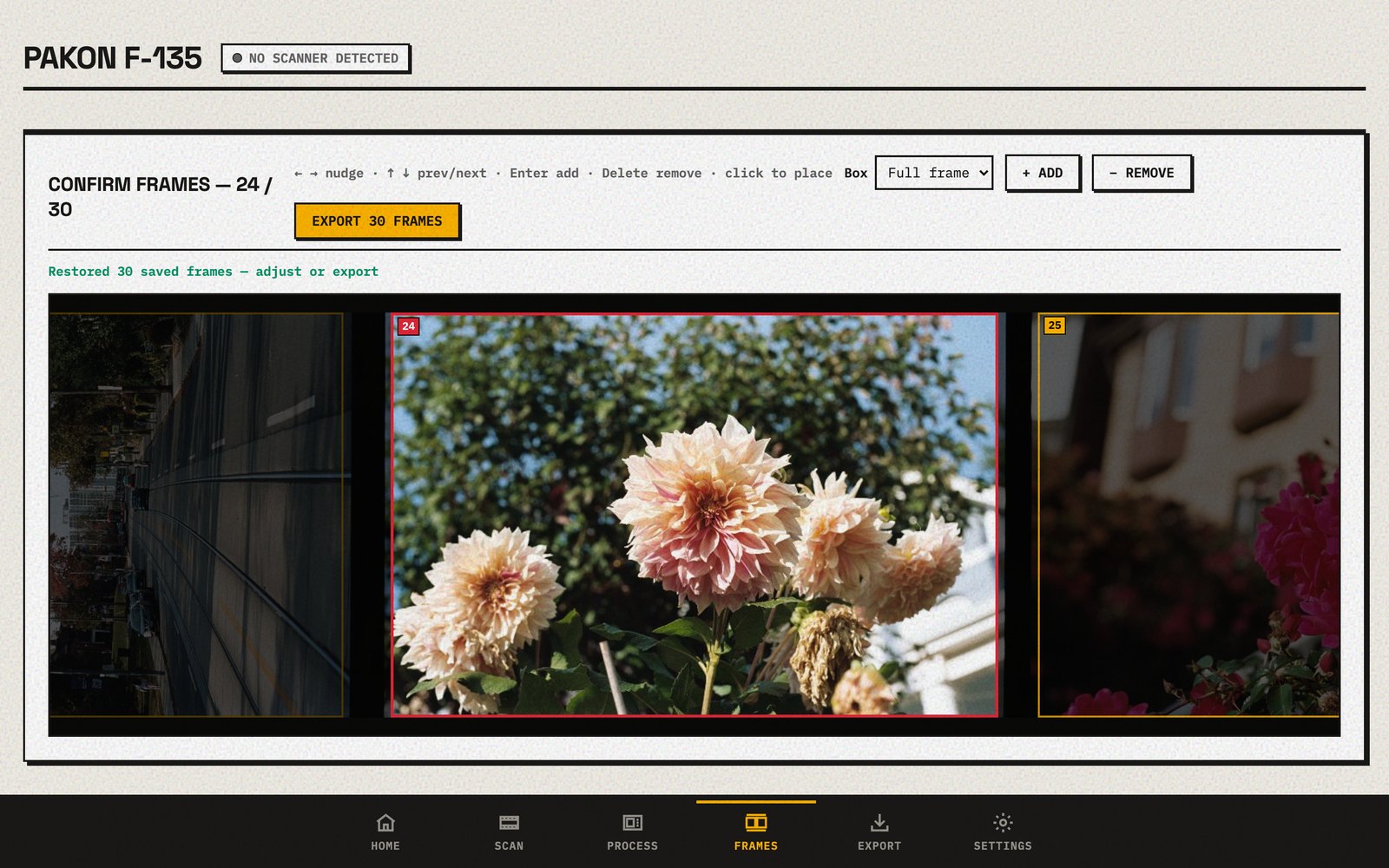
OpenPakon is a normal Mac app. Plug in the scanner, open the app and scan.
Install
- Download the right version for your Mac, above.
- Open the download and drag the app (it's called Pakon) into your Applications folder.
- Plug in the scanner with its USB cable and switch it on. Open the app.
Then follow the guide to your first scan.
Updating
OpenPakon tells you when there's a new version. Download it, quit OpenPakon, and drag the new one into Applications. Your scans and settings stay where they are.
Questions
Can I run TLX (TLXClientDemo) on a Mac?
Not directly. TLX only runs on old Windows, so on a Mac it needs a Windows XP virtual machine, which is slow and fiddly and very hard on Apple silicon Macs. OpenPakon replaces TLX with a normal Mac app.
Does it work on M1, M2, M3 and M4 Macs?
Yes. Download the Apple silicon version (Pakon.dmg).
Does it work on an Intel Mac?
Yes. Download the Intel version (Pakon-Universal.dmg). It also runs on Apple silicon Macs.
Which macOS do I need?
macOS 13 Ventura or later.
My Mac only has USB-C ports. Is that OK?
Yes. Plug the scanner's USB cable into a USB-C to USB-A adapter.
Will my Mac say the app is unsafe?
No. The app is signed and checked by Apple, so it opens like any other app.
Where do my scans go?
Into a folder called pakon in your home folder, one folder per roll. You can pick another folder in the app.