Setup guide
How to scan with your Pakon
From download to finished pictures, in six steps. Works the same on Mac, Windows and Linux.
- Install OpenPakon. Pick your computer for the download and install steps: Mac, Windows 10 & 11 or Linux.
- Connect the scanner. Plug it into your computer with its USB cable and switch it on.
- Open the app and go to Scan. Each time you switch the scanner on, press Load firmware first. (The scanner forgets it whenever it's switched off.)
- Scan. Choose the film type and press Scan. OpenPakon gets the scanner ready for about a minute. Keep the film out until it says "Motor running — feed the film now", then feed the strip. The scan stops by itself once the film has come through.
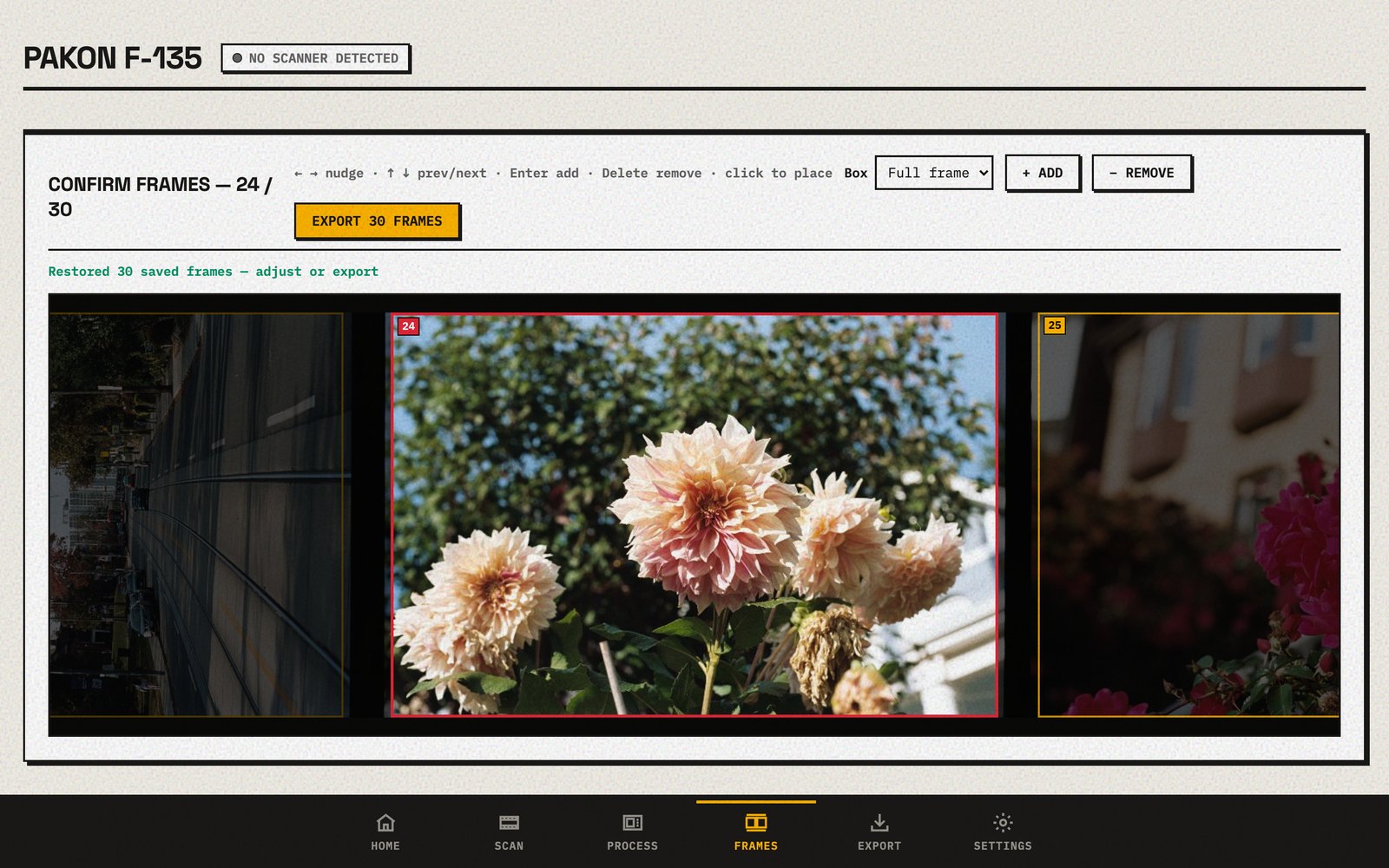
- Check the frames. The roll opens in Frames. Pick the format (full frame, half frame or panoramic) and press Auto-frame to put a box on every picture. Click to move a box, or use the arrow keys to nudge it.
- Save. If you'd like the pictures sharper, choose Low, Medium or High next to Sharpen (stronger settings also sharpen the grain, so try Low first). Press Export and choose JPEGs, TIFFs, raw negatives or a contact sheet.
Which film type?
| Your film | Choose |
|---|---|
| Colour negative (Portra, Gold, Ultramax, Fuji 400…) | Colour negative |
| Black & white (HP5, Tri-X, Delta…) | B&W |
| Black & white developed in colour chemistry (XP2, BW400CN) | B&W C41 |
| Slide film (Ektachrome, Velvia, Provia…) | Slide |
Where do my pictures go?
Into a folder called pakon in your home folder, with one folder per roll. You can choose another folder in the app.
Keep a backup. The first time OpenPakon meets your scanner,
it saves a copy of the scanner's factory settings on your computer. That
copy exists nowhere else, so include it in your backups. The
full list of where OpenPakon keeps things
shows where it is on each computer.
Something not working? See troubleshooting.
Questions
Can I scan mounted slides?
No. Like the original software, Pakon scans slides as uncut strips, not in mounts.
Can I open a roll again later?
Yes. Open the roll and your frame boxes come back as you left them.